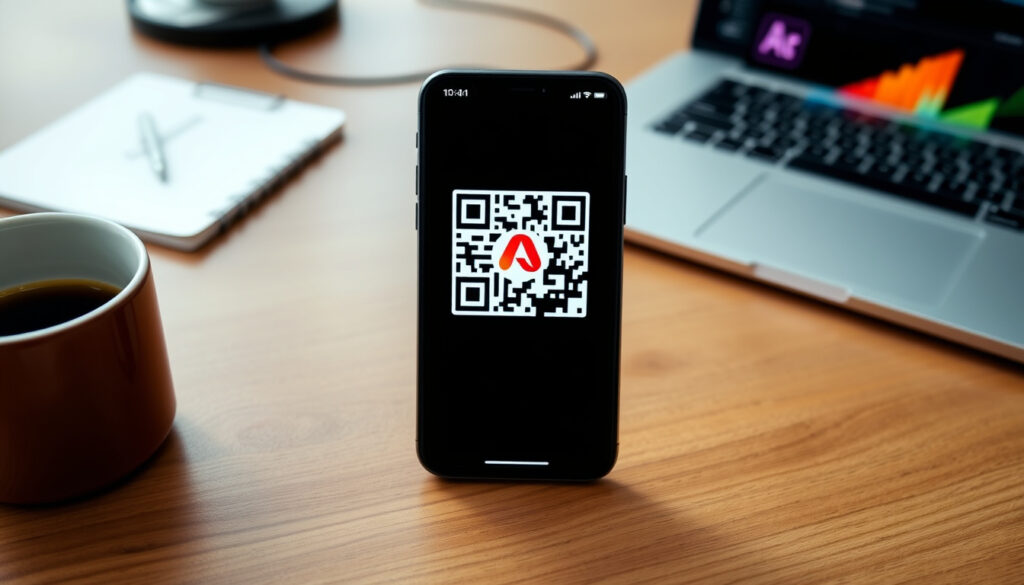
Adobe QR Code Generator: Free Customizable QR Codes with Logo
Anyone who’s ever needed a QR code for a business card, a restaurant menu, or a social media link knows the annoying part isn’t the code itself — it’s finding a generator that doesn’t slap a watermark on the final image or limit you to black-and-white designs. Adobe’s QR code generator, tucked inside both Adobe Express and InDesign, flips that script: it’s free, lets you drop your logo right onto the code, and keeps the output clean enough for professional print.
Free QR codes per day: Unlimited (Adobe Express) ·
Customizable designs: Yes ·
Logo integration: Supported ·
Dynamic QR codes: Available (premium) ·
InDesign compatibility: Native QR generation ·
File formats: PNG, JPG, SVG
Quick snapshot
- Adobe Express QR code generator is free for static codes (Adobe Express (official product page))
- Adobe InDesign has a native QR code generator (Adobe HelpX (InDesign documentation))
- Logo integration is available in Adobe Express (same source) (Adobe Express (official product page))
- Whether dynamic QR codes are available in all countries (Adobe’s pricing page is not country-specific)
- Future pricing changes for Adobe Express free tier (no official roadmap published)
- Kansas State University published a step-by-step Adobe Express QR guide on 2025-06-05 (K-State IT News (university IT department))
- Dynamic QR codes with scan analytics available on Adobe Express premium plan (Adobe HelpX support page)
The following table summarizes the key specifications of Adobe’s QR code generation tools.
| Label | Value |
|---|---|
| Platform | Web (Express), Desktop (InDesign) — Adobe Express (official product page) |
| Cost | Free (basic), Premium ($9.99/month) — Adobe Express pricing (official) |
| Max QR code data length | Up to 4296 alphanumeric characters — Adobe HelpX (QR technical specs) |
| Color customization | Yes, full color picker — Adobe Express (color options) |
| Logo support | Yes, in Express — same source |
| Scan tracking | Available in premium dynamic codes — Adobe HelpX (dynamic codes) |
How to Create a QR Code with Adobe Express?
Follow these steps
- Access Adobe Express QR code tool: Go to Adobe Express QR code generator (free, no login required for first use) and select “Quick actions > Generate QR code” as instructed by Adobe HelpX (official support).
- Choose link or content type: Paste the destination URL or select from options like text, email, phone number, SMS, WhatsApp, and more. Adobe Express supports at least eight content types according to Adobe’s own feature list.
- Customize colors and design: Click “Customize” to pick a solid color or gradient for the code and background. The color picker gives full RGB control, so you can match brand guidelines. Adobe HelpX (customization steps) confirms you can preview changes live.
- Add a logo (optional): If you want to embed a logo, upload a PNG, JPG, or SVG file directly in the editor. Adobe Express scales the logo to sit in the center of the QR code. Adobe Express (logo guidelines) notes that the code remains scannable as long as the logo covers no more than 30% of the code area.
- Download or share the QR code: Use the “Download” button to save as PNG, JPEG, or SVG. You can also select “Open in editor” to place the QR code inside a poster, social media graphic, or flyer directly in Adobe Express. Adobe HelpX (download options) states the downloaded file has no watermark.
Is Adobe QR Code Generator Free to Use?
Free features in Adobe Express
- Unlimited static QR codes — Adobe Express (free tier details)
- Full color and logo customization — Adobe HelpX (customization)
- Download as PNG, JPG, SVG — same source
- QR codes never expire — same source
Premium features (dynamic codes, analytics)
Dynamic QR codes — which let you change the destination URL after printing and track scan counts — are available on Adobe Express’s premium plan ($9.99/month). Adobe Express pricing (official) lists dynamic QR codes as a premium feature. Free users can upgrade anytime to unlock analytics.
Comparison with other free tools
Canva also offers a free QR code generator with dynamic code support (Canva QR generator (online design platform)), while The QR Code Generator (specialized tool) provides 2 dynamic codes free forever. QRCode Monkey (free custom generator) offers static codes with unlimited design options and exports as PNG, SVG, PDF, and EPS.
How to Add a Logo to an Adobe QR Code?
Upload logo in Adobe Express
While in the QR code generator, click “Add logo” and select a PNG, JPG, or SVG file from your computer. Adobe Express centers the logo automatically. Adobe HelpX (logo upload instructions) confirms the process takes seconds.
Adjust logo size and position
Drag the handles to resize the logo and reposition it within the QR code. For best results, keep the logo small — Adobe recommends covering no more than 30% of the code area to avoid scan failures, as noted by Adobe Express (logo guidelines).
Maintain QR code scannability
- Use a logo with transparent background if possible (PNG with transparency works best).
- Ensure high contrast between the QR code foreground and background; dark code on light background is the safest bet.
- Test the code by scanning it with a mobile camera inside Adobe Express — Adobe HelpX (testing feature) shows the code on the left for instant scanning.
Adding a logo to a QR code is a quick branding win, but if the logo covers too much area, scans fail. Adobe’s 30% guideline is a safe bet — any free tool that enforces this size guard can save you from reprints.
The implication: careful logo placement keeps your QR code functional and branded.
How to Generate QR Codes in Adobe InDesign?
Access QR code panel in InDesign
Open InDesign, go to Window > Interactive > QR Code Generator. No plugin needed — the feature is built into InDesign CS6 and later. Adobe HelpX (InDesign QR documentation) confirms the panel’s location.
Enter URL or text data
Type or paste the destination URL, text, email address, or phone number into the panel’s text field. You can also enter vCard data for contact QR codes. The panel supports the same content types as Express.
Customize color and appearance
InDesign’s QR code is vector-based and fully scalable. You can change the foreground and background colors, and even apply custom shapes using the direct selection tool. Adobe HelpX (InDesign customization) says color changes are reversible via the panel.
Place QR code in document
Click “Generate” and the QR code attaches to your cursor. Place it anywhere on the page, then resize or rotate it without losing resolution because it’s vector art. Same source outlines the workflow.
InDesign’s QR generator is designed for print professionals. It lacks an integrated logo upload — you’ll need to place a logo on top manually and adjust readability. For non-print tasks, Adobe Express is faster and more brand‑friendly.
What Are the Best Practices for Adobe QR Codes?
Ensure high contrast between code and background
Scanners work best with a dark foreground (black or very dark color) on a light background. Avoid gradients that reduce contrast. Adobe HelpX (contrast recommendation) suggests previewing with a mobile camera before printing.
Test scannability before publishing
Adobe Express shows the QR code on the left side of the generator — use any phone’s camera to test it immediately. Adobe HelpX (live test) lets you verify without leaving the browser.
Use error correction when adding a logo
Adobe’s QR generator automatically applies error correction. For logos, select at least 15% error correction (Adobe Express uses the default “M” level, which is 15%). Adobe Express (error correction default) is adequate for most logos.
Include a clear call-to-action near the code
Tell people what the QR code delivers: “Scan to view our menu,” “Get 10% off,” “Subscribe on YouTube.” A label reduces hesitation and increases scan rates, as noted by K-State IT News (university IT best practices).
The pattern: All best practices reduce to one rule: make it easy for a camera to decode and for a human to understand why they should scan. Adobe’s tools give you the controls — contrast, error correction, logo size — but you have to apply them.
Quick Reference: Adobe QR Generator vs. Competitors
Six generators, one pattern: static codes are widely free, dynamic codes separate the free plans from premium. The table below shows where each tool lands.
| Feature | Adobe Express | Adobe InDesign | Canva | QRCode Monkey | The QR Code Generator |
|---|---|---|---|---|---|
| Cost | Free (static); Premium $9.99/mo | Included with CC license | Free (static + dynamic) | Free (static only) | Free (static); 2 dynamic codes free |
| Logo support | Yes (upload) | Manual placement only | Yes (upload) | Yes (upload) | Yes (upload) |
| Dynamic codes | Premium only | No | Free for first dynamic code | No | 2 free dynamic codes |
Upsides
- Unlimited static QR codes free with no expiration
- Logo upload and full color customization built into Express
- Clean, watermark-free downloads in multiple formats
- Native InDesign support for print professionals
Downsides
- Dynamic QR codes require paid subscription
- No free scan tracking or analytics
- InDesign lacks integrated logo embed (manual workaround needed)
- Free tier limited to static content; no redirect editing
Adobe Express gives you unlimited free static codes with brand polish, but if you need dynamic redirects or analytics, you’re paying $9.99/month. Competitors like Canva offer one free dynamic code — a better deal for short campaigns.
The trade-off sets Adobe apart from competitors that offer dynamic codes for free.
Quick Start: Generate QR Codes in Adobe Express and InDesign
For a fast, branded QR code in less than 60 seconds: open Adobe Express, paste your URL, pick your brand color, upload your logo, and download as SVG. For print projects: fire up InDesign, open the QR Code panel, type the URL, and place the vector code on your page. Both workflows are covered in Adobe HelpX (Express guide) and Adobe HelpX (InDesign guide).
“Generate a QR code for free with Adobe Express.” — Adobe Express (official product page)
“I created a QR code in Adobe Express but I’m worried it will expire. Does anyone know how long they last before the link stops working?” — Reddit user (community discussion, 2025)
Adobe’s official stance is that codes never expire, but the confusion highlights a real gap: free users don’t get the same visibility into code management as premium subscribers. For critical campaigns, the peace of mind of a paid dynamic code may be worth the monthly fee.
txtimpact.com, helpx.adobe.com, youtube.com, outrightsystems.org, fitsmallbusiness.com, reddit.com, youtube.com
For a detailed walkthrough of the tool’s features, check out the Adobe QR Code Generator guide on StorySignal.
Frequently asked questions
Can I generate a QR code for a PDF with Adobe Express?
Adobe Express does not directly generate a QR code for a PDF. You can upload the PDF to a hosting service and use the share link inside the QR generator. Adobe Express (link-based generation) supports any URL.
Does Adobe QR code generator work on mobile?
Yes, Adobe Express’s QR generator works in a mobile browser. You can create, customize, and download QR codes directly on your phone. Adobe HelpX (mobile access) confirms full mobile compatibility.
How do I change the color of a QR code in InDesign?
Open the QR Code panel, select the code, and choose a new color from the color swatches. The change applies instantly. Adobe HelpX (InDesign color) provides step‑by‑step.
Can I track how many times my Adobe QR code is scanned?
Tracking requires a premium subscription — Adobe Express’s dynamic codes include scan analytics. Free static codes have no tracking. Adobe Express pricing (dynamic feature list) details the analytics included.
What file format should I use for printing QR codes from Adobe?
For print, download the QR code as SVG (scalable vector) from Express or place the vector code directly from InDesign. PNG with high resolution (300 DPI) also works. Adobe HelpX (export options) lists all formats.
Is there a limit to the number of QR codes I can create with Adobe Express?
No — Adobe Express does not limit the number of static QR codes you can create. Each code is permanent. Adobe Express (unlimited access) states no daily or total caps.
How to center a QR code within a design in Adobe Express?
After generating the QR code, use the alignment tools in the Express editor. Adobe Express offers center alignment and grid guides. Adobe HelpX (editor alignment) covers positioning.
Can I generate a QR code for an app store link using Adobe?
Yes — paste the App Store or Google Play URL into the QR generator. Adobe Express does not restrict link destinations. Adobe Express (URL types) supports any web link.
More related posts
 Arsenal vs Aston Villa Standings: Result, Table & Head-to-Head
 Four Star Pizza Fairview: Menu, Hours & Reviews
 Shona McGarty Movies and TV Shows: Complete Filmography
 Normal Body Temperature Adults: Ranges, Fever & Low
 Tuam Mother and Baby Home: 2026 Excavation & Compensation
 Cast of Countdown American TV Series: Full List & Cancellation
 Anne Cassin Age: 64, Birthday, Husband, Children
 AS Roma vs AC Milan 2026 Lineups: 3-4-2-1 vs 3-5-2
